What you’ll build: A family photo setup where everyone’s photos end up in one place, automatically.
End state: Your partner’s photos show up in your timeline. Your kids’ school photos land on the server the moment you walk in the door. No shared folders, no “did you send me that photo?”, no Google.
Prerequisites: Immich installed and running on your Mac. If you haven’t done that yet, start with Set Up Immich on Your Mac.
Face recognition that stays on your hardware
Before we get to sharing: face recognition. Immich detects and clusters faces locally on your Mac. No cloud, no API call, no biometric data leaving your network. Google Photos does this too, but it sends your family’s faces to Google’s servers. Apple does it on-device per phone, but the results stay trapped on that phone.
Immich runs the ML models inside a Docker container on your hardware and clusters faces across your entire library. Search for your daughter’s name and get every photo she’s in, going back years, across both your and your partner’s libraries. All of it indexed on a machine in your house.
Two things to know: face merging isn’t possible yet. If the same person gets split into two clusters, you can’t merge them into one. Annoying when it happens, and it does happen. The other thing: the avatar for each recognized person is picked from the first photo Immich processes, and you can’t change it. I’m stuck with a deeply unflattering photo of myself as my face avatar because that happened to be in the first batch. So if you care about that sort of thing, be thoughtful about which photos you upload first.
Partner sharing
Partner sharing merges two photo libraries into one timeline. Your photos, your partner’s photos, chronological, with a small avatar showing whose is whose. You both upload from your phones and the merged view just appears.
We browse our photos almost exclusively through the partner timeline now. School events, vacations, random stuff from a Tuesday afternoon. It all ends up in one place without either of us doing anything.
How to enable it
Both partners need to enable it from their own accounts. It’s not a one-sided thing.
- Log into your account in the web UI
- Go to Library > Partner > Add Partner
- Select your partner’s account
- Toggle Show partner’s photos in timeline on

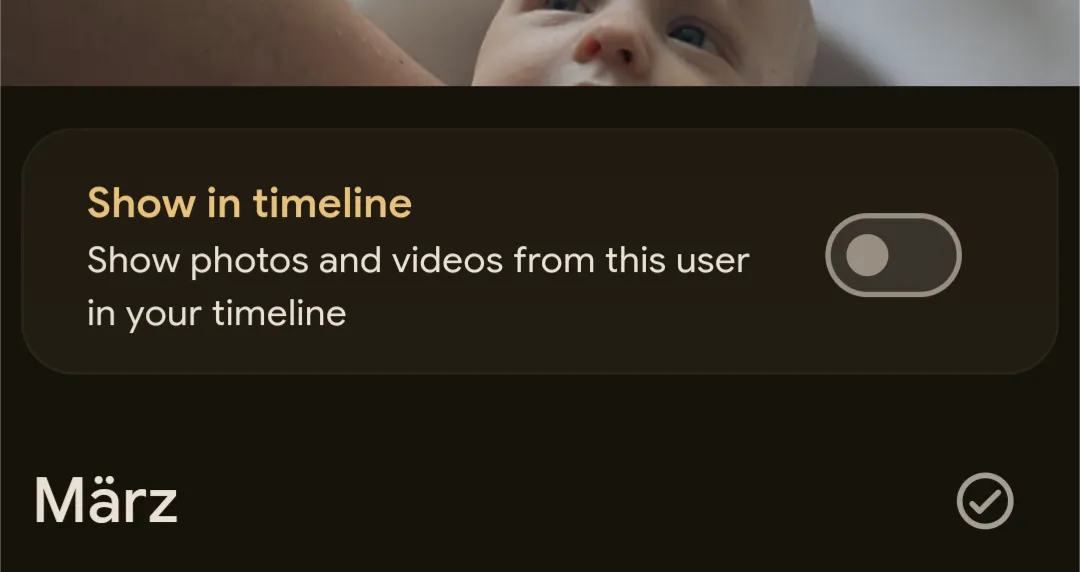
Have your partner do the same from their account. Both directions need to be set up separately. Once enabled, the Photos tab shows everything from both of you. The mobile app picks this up too.
One-directional sharing also works if only one of you wants the merged view.
Account structure
Option 1: Admin account for daily use. One account, full access, photos and administration in the same place. Fine if it’s just you and your partner. The downside: the API key for automation scripts is tied to your personal account.
Option 2: Separate admin and personal accounts. Create a dedicated admin account (e.g. [email protected]) for server stuff and API keys, then personal accounts for photos. Immich requires an email format for accounts but never actually sends mail to them, so it doesn’t need to be real. Store the admin password in a password manager. Getting locked out of your own photo server is not fun.
I started with option 1 and it’s been fine.
Getting your family on board
Don’t send your family a link and hope they figure it out. That’s how Immich ends up being “your thing” that nobody else uses.
Take their phone. Install the Immich app. Create their account. Set up the backup folders. Hand it back. Five minutes per device.
I did this with my wife’s phone one evening. She didn’t ask a single question. Two weeks later she’d uploaded 3,000 photos without realizing the app was running. The trick is removing every reason to say no. If there’s nothing to learn, nobody objects.
One thing: don’t sync the full Camera Roll on day one. Upload a handful of photos first, check that they show up, check that face recognition picks them up, make sure the avatars look reasonable. Once you’re happy, enable the full Camera Roll backup and let it run overnight. The initial sync of thousands of photos pins the CPU for hours while the ML service indexes everything. Better to let that happen while everyone’s asleep.
Mobile app settings worth changing
Once you’ve installed the app on a family member’s phone:
- Backup > Backup Albums: Camera Roll at minimum. Add Screenshots and WhatsApp if they want those too.
- Backup > Wi-Fi only: leave this on.
- Backup > Background backup: enable it. Without this, the app only uploads when it’s open in the foreground. Easy to miss, annoying to debug later when photos aren’t syncing.
Shared albums
For photos shared with people outside the household, create a shared album. Select photos in the web UI or app, create a new album, share via link.
Links support expiry dates and passwords. Good for sending holiday photos to relatives who don’t have an Immich account.
External access required. Shared links only work for recipients outside your home network once your server is reachable from the internet. Reverse proxy or VPN setup will be covered in a separate guide.
Album sharing via email requires the recipient to have an Immich account on your server. Album sharing via link doesn’t. Link recipients get a read-only view. For grandparents, the link approach is easier. Generate it, send it on WhatsApp.
Checklist
- Personal accounts created for each family member
- Partner sharing enabled (both directions)
- Mobile app installed on all phones
- Backup folders configured (Camera Roll + optionally Screenshots/WhatsApp)
- Background backup enabled on all phones
- First sync completed (check the timeline)
Your photos are not backed up yet. Immich stores everything on your Mac’s internal SSD. If that drive dies, your photos are gone. The install guide covers database dumps and photo backups. A full backup guide with offsite protection is coming. Don’t skip this. Syncing 10,000 family photos to a server with no backup is worse than leaving them on Google, at least Google has redundancy.
Frequently asked questions
Is Immich a good Google Photos replacement? For a family, it’s the best self-hosted option right now. Mobile apps sync automatically, face recognition works well and runs locally (your biometric data never leaves your network), and the web UI is solid. Google’s search is still better. Sharing with people outside your network takes extra setup. But your photos stay on your hardware, and the face data stays there too.
Can multiple family members use Immich? Each person gets their own account and private library. Partner sharing merges two timelines into one view. Kids old enough to have phones can get their own accounts.
Do photos sync when I’m away from home? Not by default. The app queues photos and uploads them when you’re back on the home network. For most families this is fine. If you want uploads from anywhere, you’ll need a VPN or reverse proxy (separate guide).
What if my partner doesn’t want to use it? Set it up on their phone (with permission). The app runs in the background and uploads silently. Most resistance comes from “I have to learn a new app.” Remove that friction and it tends to resolve itself.
Next steps: Want to run a private ChatGPT on the same server? Set up Open WebUI with Ollama →